Pixelate an Image Online: Create Mosaic Effects and Hide Details
Pixelation is a simple image-editing technique that transforms smooth image details into larger square blocks of color. It is commonly used to hide faces, license plates, personal information, and private details in screenshots. It can also create retro pixel art and classic 8-bit visual effects.
Whether you want to pixelate an entire photo or hide a specific area, understanding pixel size and selection options helps you achieve the right result.
What Does Pixelate Mean?
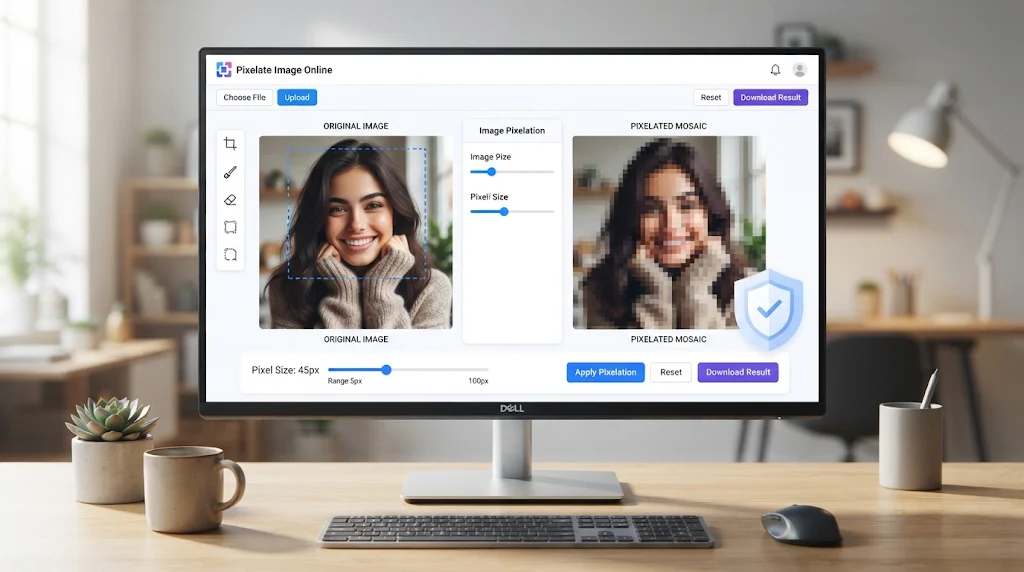
To pixelate an image means to replace small image details with larger blocks of color. An editing tool divides the image into a grid and represents each block using a single color, often calculated from the original pixels.
The result is a mosaic-like appearance where fine details become less recognizable. Larger blocks create a stronger pixelation effect, while smaller blocks preserve more of the original appearance.
Pixelation is useful for two main purposes: protecting visual privacy and creating artistic effects.
How to Pixelate an Image Online
You can pixelate a picture directly in your browser without installing desktop software. Follow these simple steps:
- Upload an Image: Open an online pixelation tool and select a JPG, PNG, or WebP image from your device.
- Adjust Pixel Size: Move the pixel size slider or enter a value manually. Larger blocks produce a stronger mosaic effect.
- Select an Area: Choose whole-image mode to pixelate everything, or use a rectangle, ellipse, or brush to select specific areas.
- Preview the Result: Compare the edited image with the original to ensure the intended details are covered.
- Download Your Image: Export the finished result in a supported format, such as PNG, JPG, or WebP.
For privacy-sensitive images, inspect the exported file rather than relying only on the editing preview.
Common Uses of Image Pixelation
Pixelation has several practical applications in photography, social media, digital content, and graphic design.
- Face Privacy: Hide people’s faces before sharing group photos, public images, or screenshots.
- License Plates: Conceal identifying details in vehicle photographs. For stronger protection, use a solid opaque cover.
- Screenshots: Hide usernames, email addresses, phone numbers, order details, and other private information.
- Documents: Cover personal details in document previews before publishing them online.
- Pixel Art: Transform ordinary photographs into retro 8-bit visuals using larger pixel blocks and limited color palettes.
Pixelation vs. Blur vs. Solid Masking
These three editing methods look different and offer different levels of protection.
| Method | How It Works | Best Use |
|---|---|---|
| Pixelation | Replaces details with large color blocks | Faces and mosaic effects |
| Blur | Softens details by blending nearby pixels | General visual effects |
| Solid masking | Covers information with an opaque shape | Passwords, numbers, and sensitive text |
Pixelation removes fine image detail from the processed area, while blur softens it. However, neither should be treated as a guarantee that sensitive text is impossible to identify. A fully opaque mask is generally a safer choice for confidential information.
Summary
Pixelation makes images look blocky by replacing fine details with larger color sections. It is useful for hiding faces, creating mosaic effects, protecting screenshots, and designing retro pixel art. With adjustable block sizes and selective editing, you can control exactly how much of an image is affected.
For sharper pixel-art results on websites, explore this guide to pixel art rendering and browser image smoothing.